Merchant account setup
TrolleysPowered by Etail DepotEnter your email on Trolleys Welcome before choosing Register or Sign In. Follow the illustrated steps to create or access your merchant account.
On this page
Create your merchant login
Enter your email on Welcome
Open Start now. Enter your email in the Email field, then choose Register beneath the Sign In button.
Start nowYour application opens in Trolleys, an Etail Depot service. Enter your email on Welcome to create or continue your account. Merchant account approval is required.If Welcome says your email is already registered, choose Sign In. You may be asked to finish creating a password before continuing.
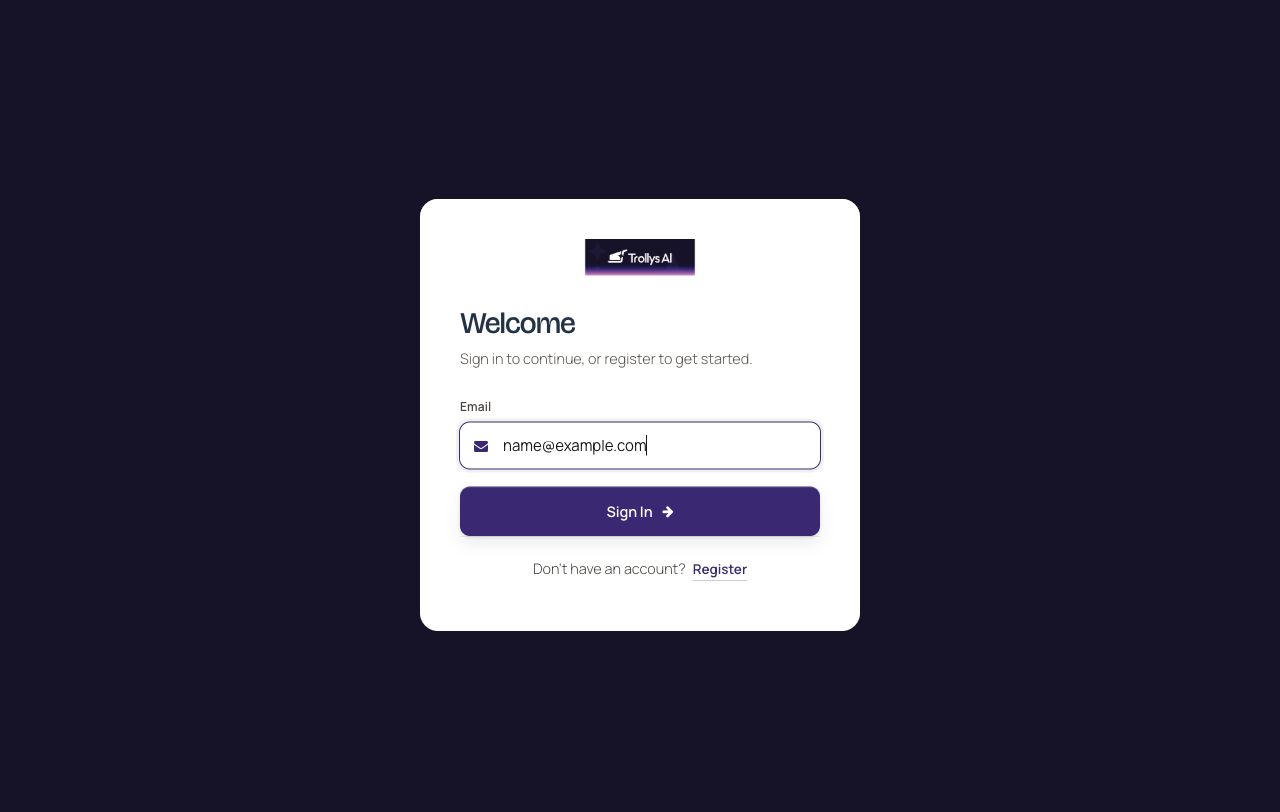
Welcome: enter your email before choosing Register or Sign In. Create your password
On Register New Account, check the email carried over from Welcome. Enter and confirm your password, follow the requirements shown, then choose Register.
Email blank or wrong? Return to Welcome to correct it.
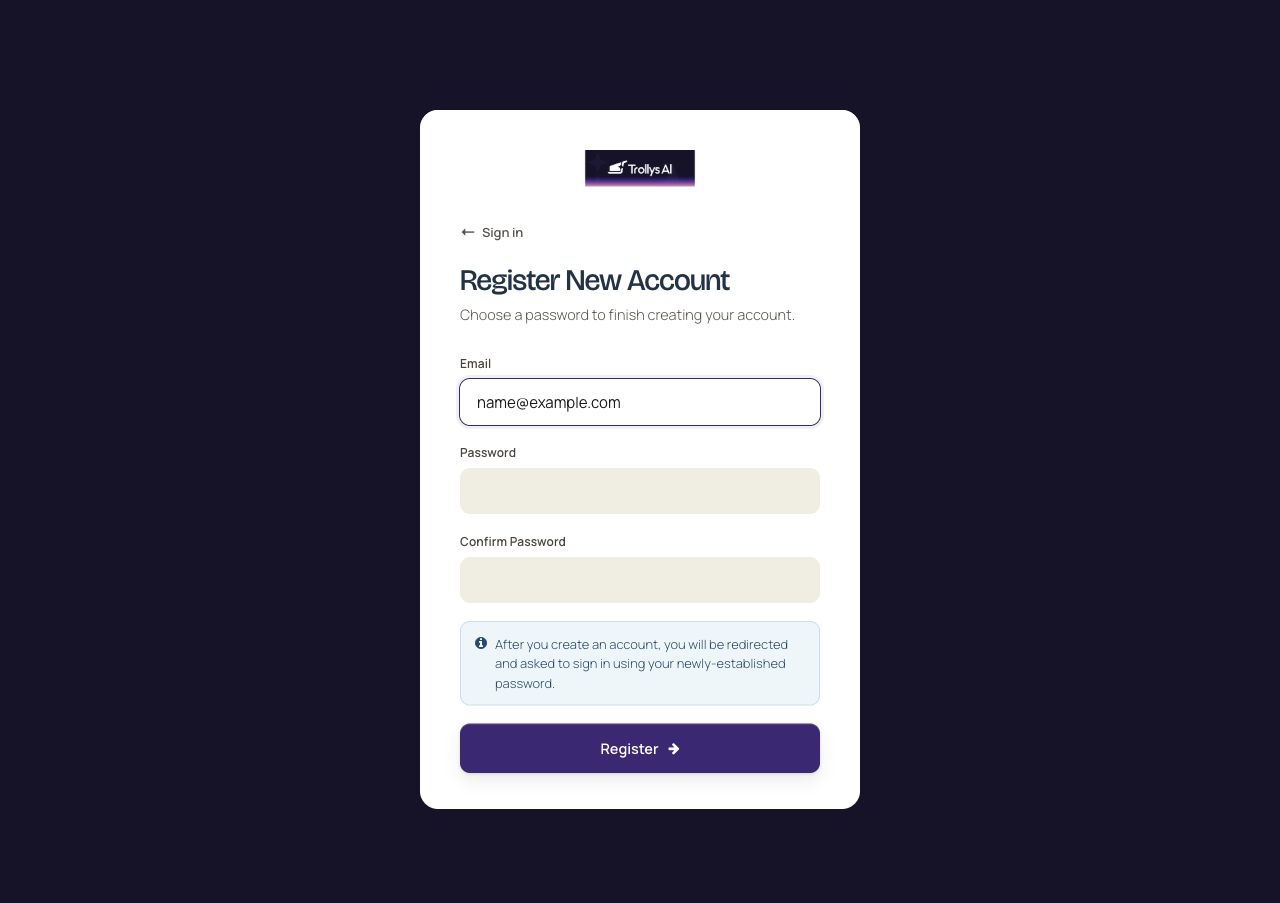
Registration: your email is filled in automatically. Continue your business application
Open your application or choose Continue beside one already started. Enter the requested business, ownership and bank details. Check the information and terms before submitting.
If asked to sign in again, use the same email and password.
Creating a login is not approval to accept payments. Wait for account approval and confirmation that your payment setup is ready.
Illustration of the application area. Your account may show different options.
Already have an account?
- Open Sign in to Trolleys below. Enter your registered email on Welcome, then choose Sign In.
- Follow the password prompt. If asked to create a password, finish that step for the same email.
- Once signed in, continue the existing application or open your approved account.
Email blank or incorrect?
The Email field on Register New Account cannot be edited. It uses the address entered on Welcome.
- Choose Sign in above the Register New Account heading.
- On Welcome, enter the correct email.
- For a new account, choose Register. For an existing account, choose Sign In.